How can I change my email address and password?

Salah
Last Update 5 tahun yang lalu
Whether you rebranded your business or just simply want to use a different email address or password, managing your login credentials is just at your fingertips. You can make the necessary changes even without contacting your account manager. We have outlined the following steps to help you manage your access.
Changing your login details when the account is accessible
Here are the steps for changing your email and password if you can log in to your account:
1. Click the account drop-down located on your admin dashboard and select " Account." This drop-down is represented by your email address.
2. Enter the new login details that you want to use. By default, your current email address will be shown on the Editing User page. You can simply replace this with your preferred email address in case you want to change your email. If not, you can skip the email address and proceed to the password.
3. Next, enter the password that you would like to use. You can use your existing password if you're only changing the email or update it with something new. The password has to be added regardless if you're only updating the email or not.
4. Finally, click " Update" to save the details. You will be routed back to your main dashboard once the changes have been saved. Your new email address will also be shown on your account drop-down.
Changing your login credentials when the account is not accessible
Follow these steps for instances where you can no longer access or login to your account:
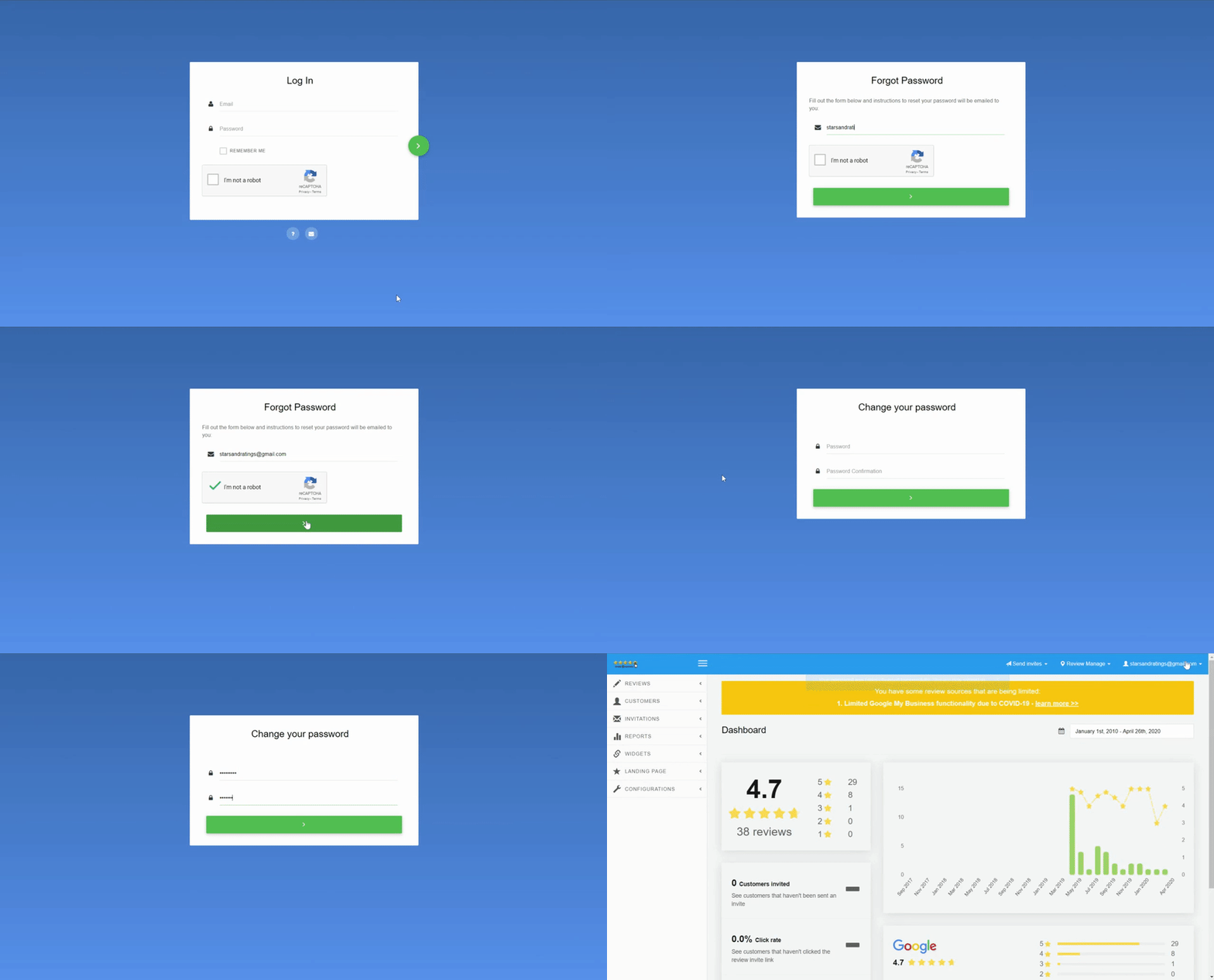
1. Go to your ReviewZilla login page and click the question mark (?) to open the forgot password link.
2. Enter the email address that you have used to create the account then check the "I am not a robot" reCaptcha box.
Note: Please reach out to the support for cases where your email is not being recognized so they can update the email from their end.
3. Next, click the green arrow button to receive the instructions on how to reset your password.
4. Finally, follow the instructions provided in the email that you will receive. The steps would be similar to how to initially set up your password. Once your new password is set, you can now follow the steps outlined under " Changing your login details when the account is accessible" in case you want to update your email address.